Edit a Group
You can edit an existing device group to update its name, location, description, or assigned devices. This is useful when operational requirements change or devices need to be reorganized.
To Edit a Group
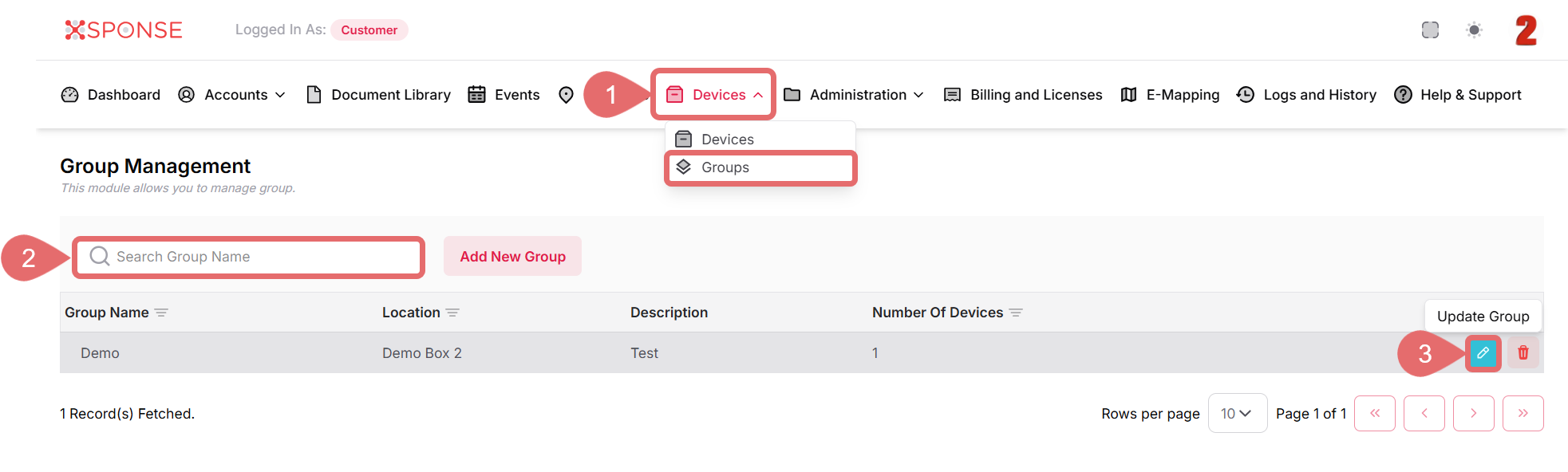
- Go to Devices > Groups in the main menu.
- Use the search bar to locate the group you want to update or you can also scroll through the list to locate it manually.
- In the Actions column, click the Update Group icon.
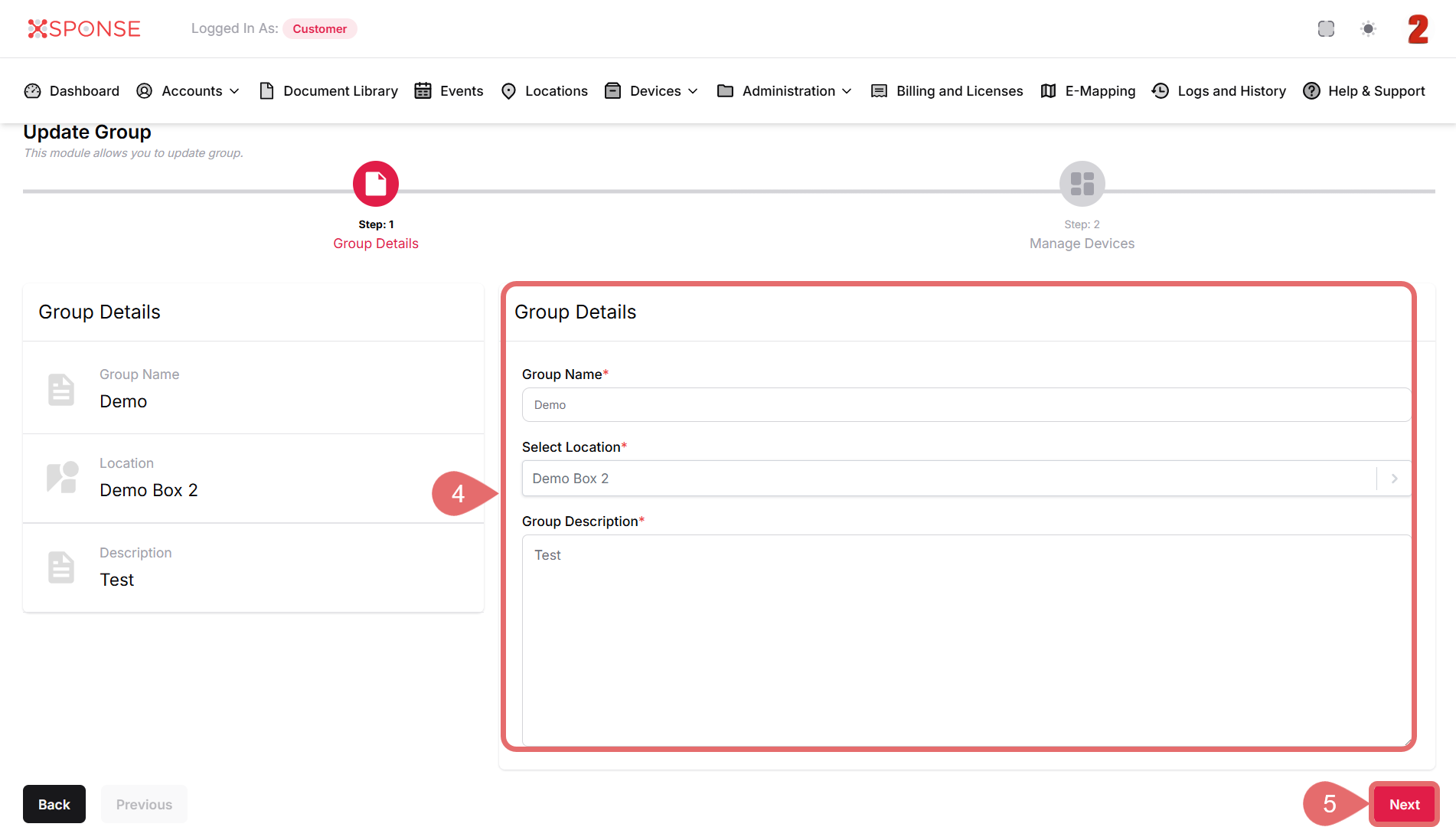
- In the Group Details screen, update any of the following fields:
- Group Name: Modify the group’s name.
- Select Location: Change the associated location.
- Group Description: Update or add more context to the description.
- Click Next to continue.
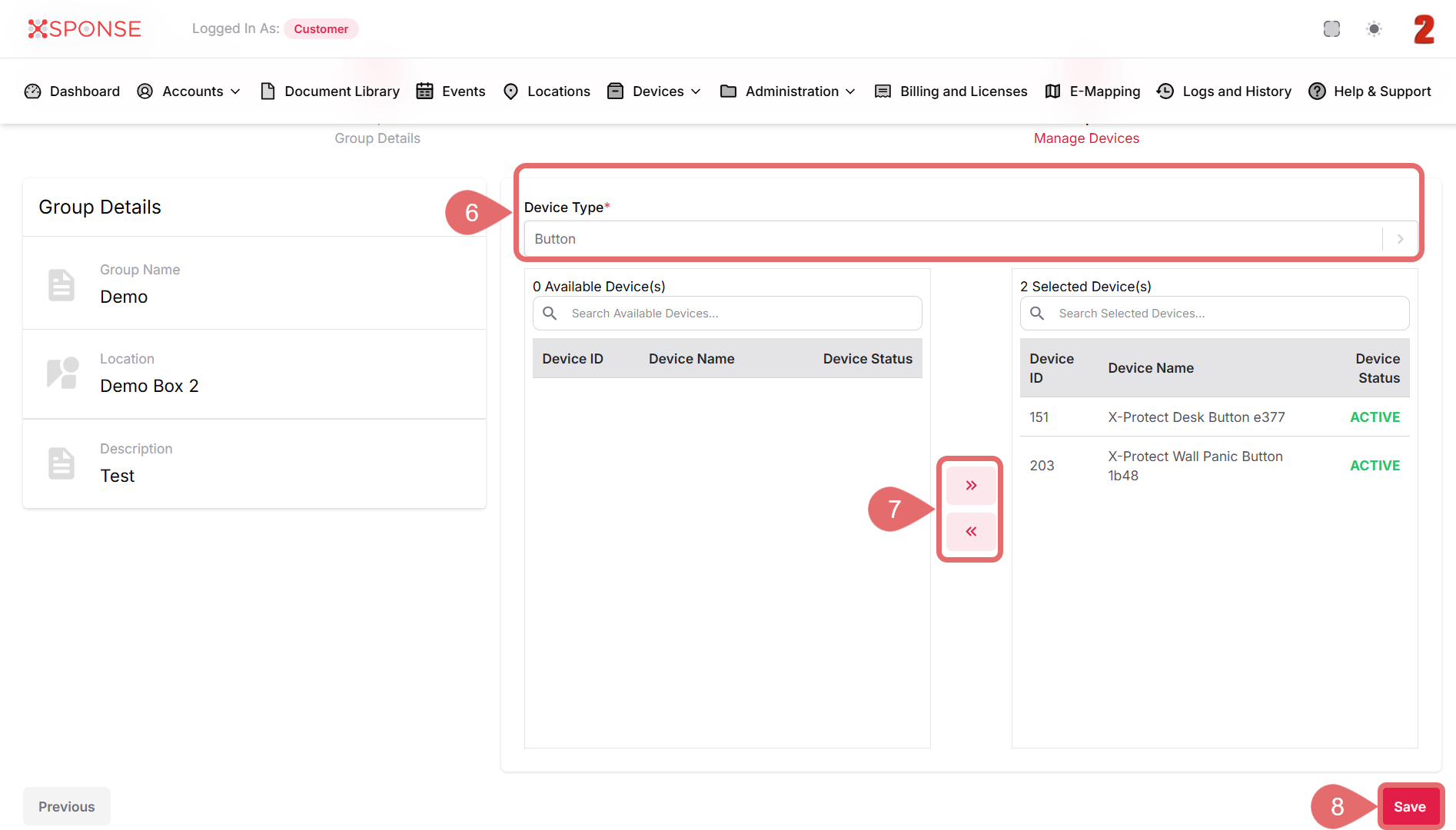
- In the Manage Devices step, select a Device Type from the dropdown to filter the available devices.
- Use the arrow buttons to reassign or remove devices from the group as needed.
- Click Save to apply the changes.
Editing a Group
Changes made to a group will take effect immediately. Devices added or removed from the group will reflect the new grouping in device management and configuration views.
See Also
To complement your knowledge of this process, check the following pages: