Create and Upload a Base Map
Creating a custom base map allows you to overlay your specific floor plan or site layout, making your geographic annotations more accurate and meaningful.
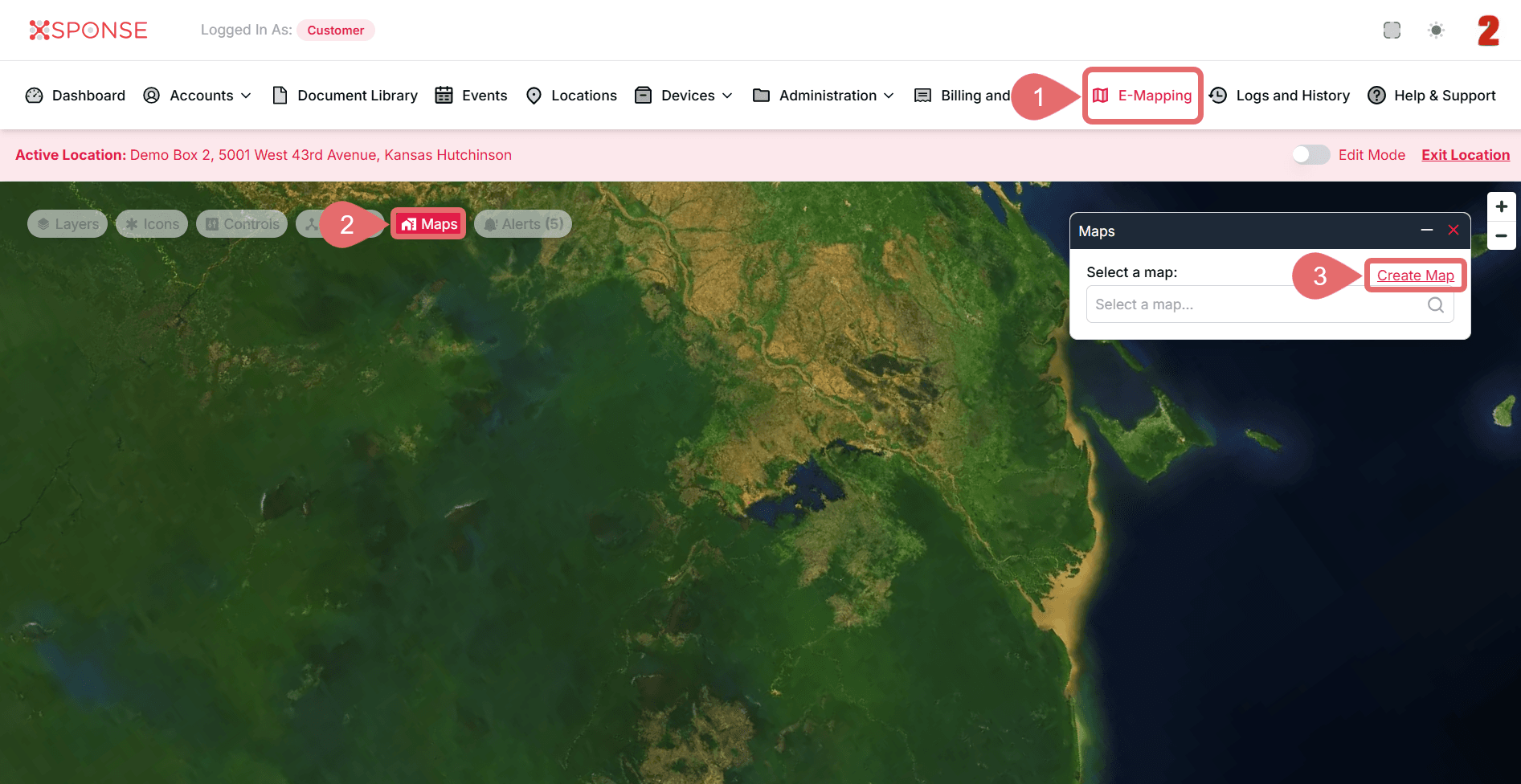
To Create a Base Map
- Go to E-Mapping in the main menu.
- Click the Maps tab.
- Select Create Map.
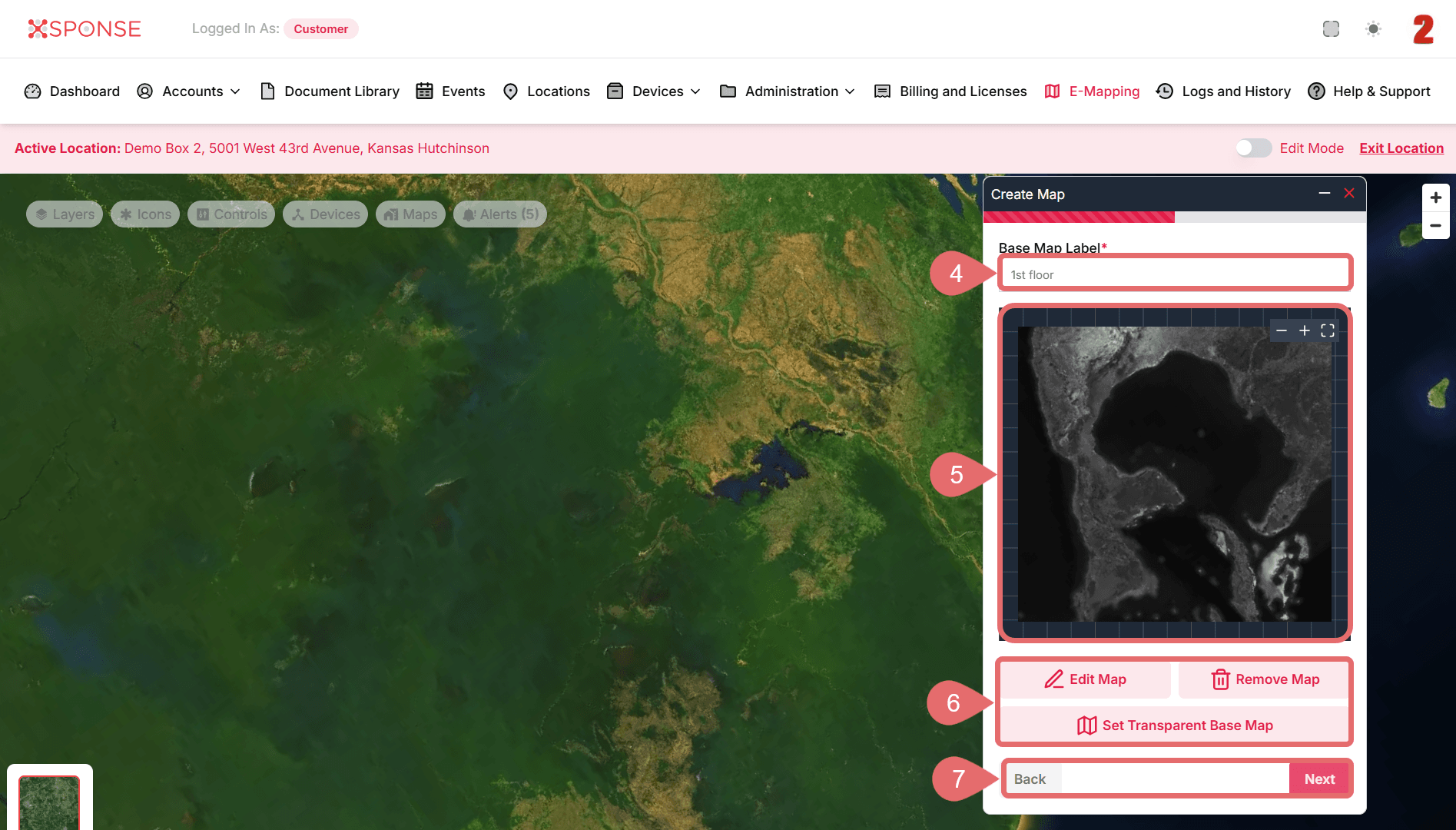
- In the create map window, enter a Base Map Label (e.g., “First Floor” or “Building Layout”).
- Upload your floor plan or site layout image. Supported FormatsUpload files in .png, .jpg, or .gif format.
- (Optional): If you want to adjust the uploaded image before proceeding, you can use Edit Map, Remove Map, or Set Transparent Base Map.
- Click Next to continue without changes.
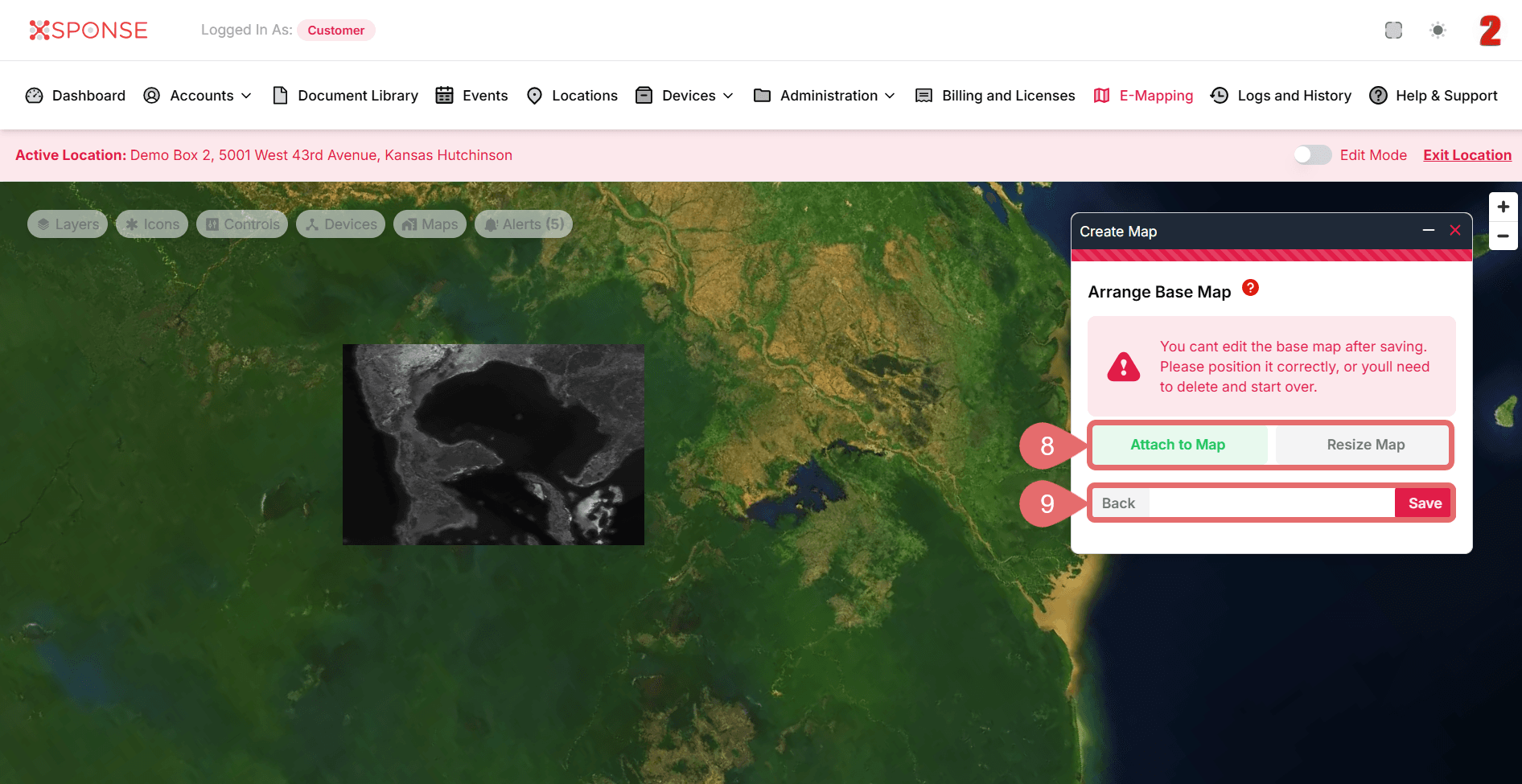
- Click Attach to Map to place the image into your map or Resize Map to make further adjustments.
- Click Save to apply changes, or Back to return without saving.
See Also
To complement your knowledge of this process, check the following pages: