Create a Geo-Location Event with Electronic Mapping
You can configure geo-location-based events using the Electronic Mapping feature in Xsponse. This allows you to define precise map zones and automatically trigger actions when entering or exiting those areas.
To Create a Geo-Location Event
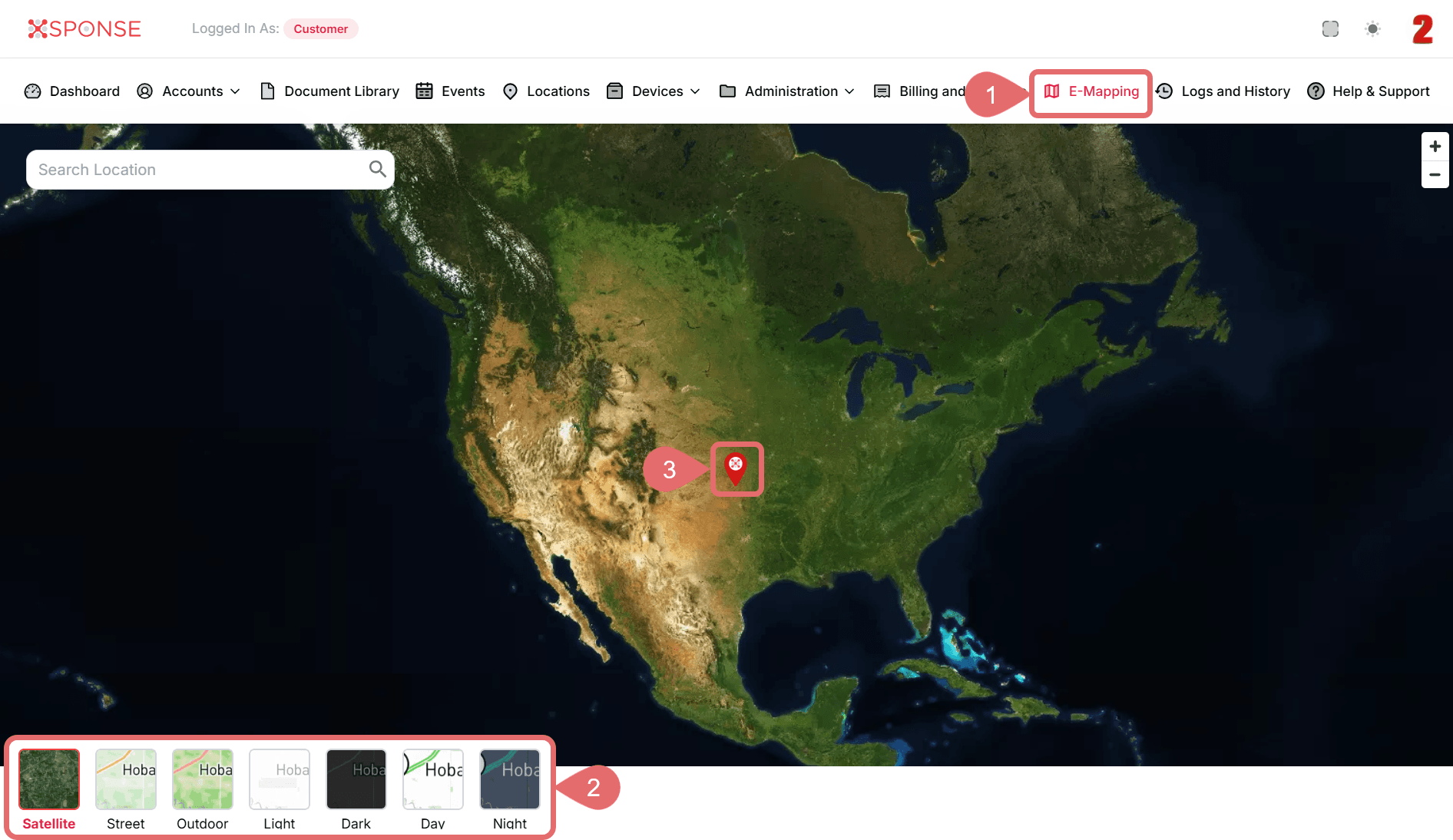
- Go to E-Mapping in the main menu.
- (Optional): Click Satellite in the lower-left corner of the map and select one of the available map styles:
- Satellite: Real satellite imagery for detailed terrain and landscape.
- Street: Clear display of streets and urban features.
- Outdoor: Optimized for outdoor mapping with terrain and labels.
- Light: Bright theme with minimal contrast for daytime viewing.
- Dark: Dark theme suitable for low-light environments.
- Day / Night: Automatically adjusts the map based on time of day.
Map Style UpdatedThe map style changes as soon as you select a new option.
- Select Marker.
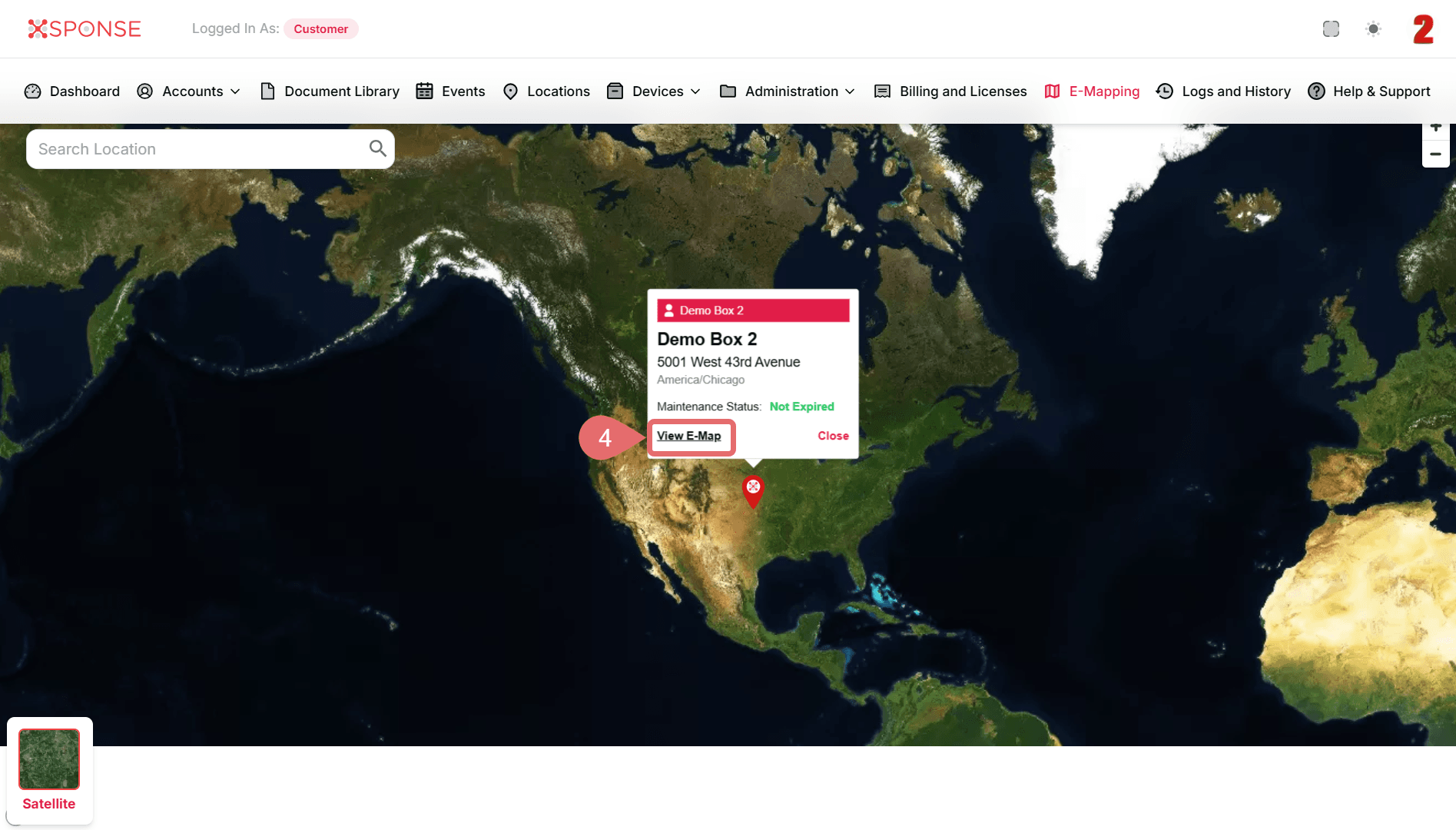
- Click View E-Map.
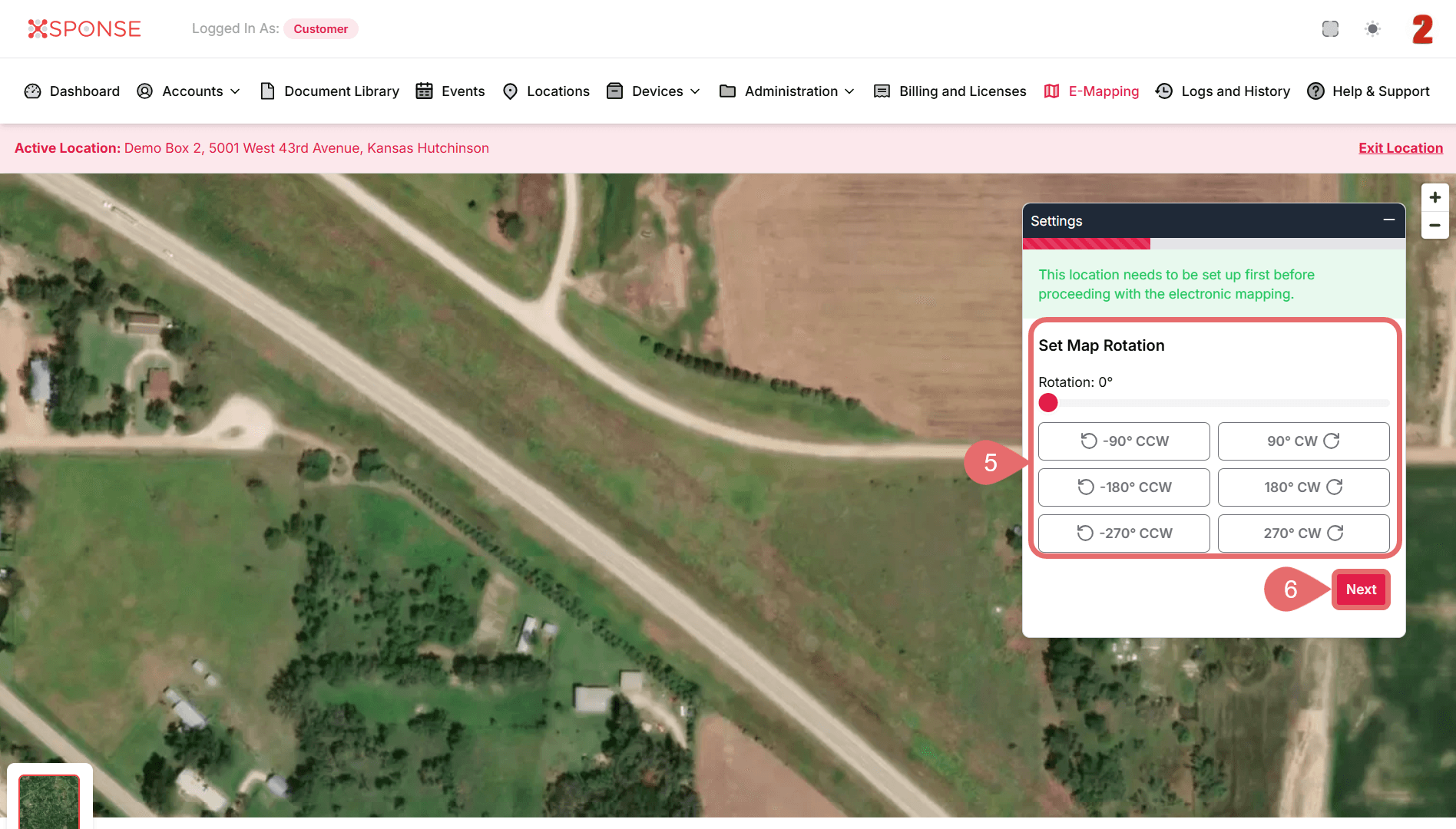
- Set Map Rotation.
- Click Next.
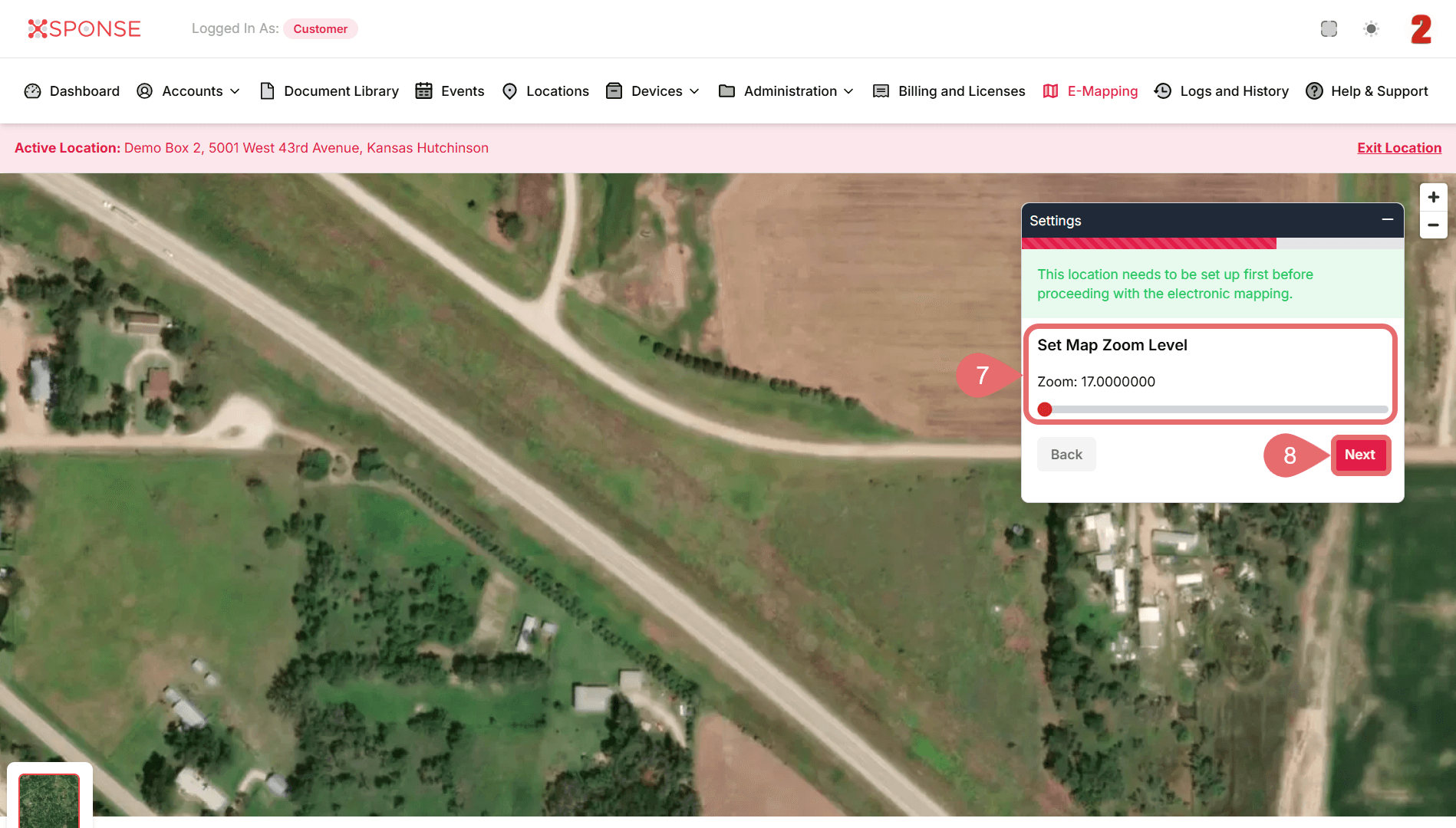
- Set Map Zoom Level.
- Click Next again.
- Click Start Draw to define the base area.
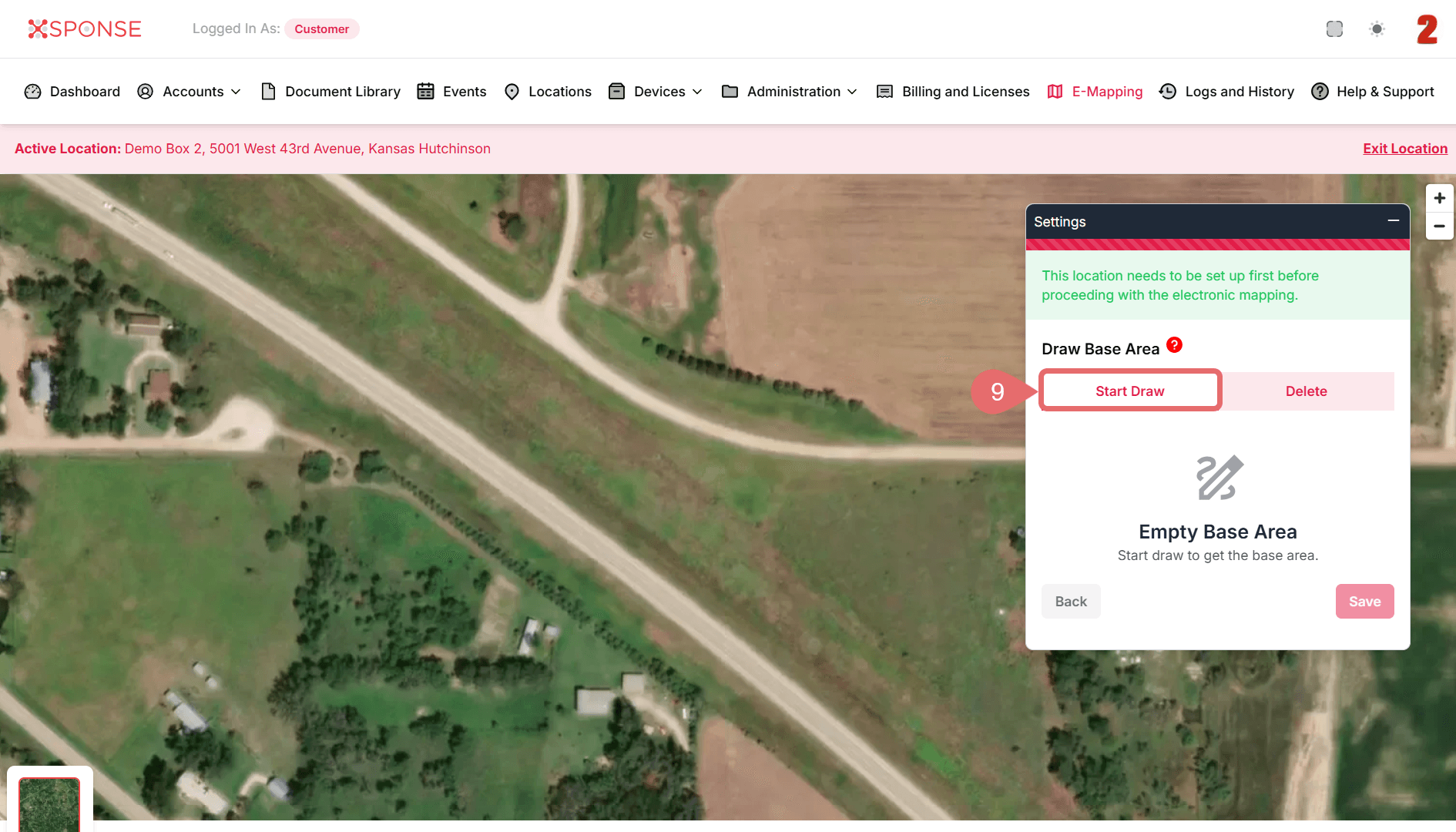
- Use your mouse to draw the target zone directly on the map.
- When finished, click Save to confirm the area.
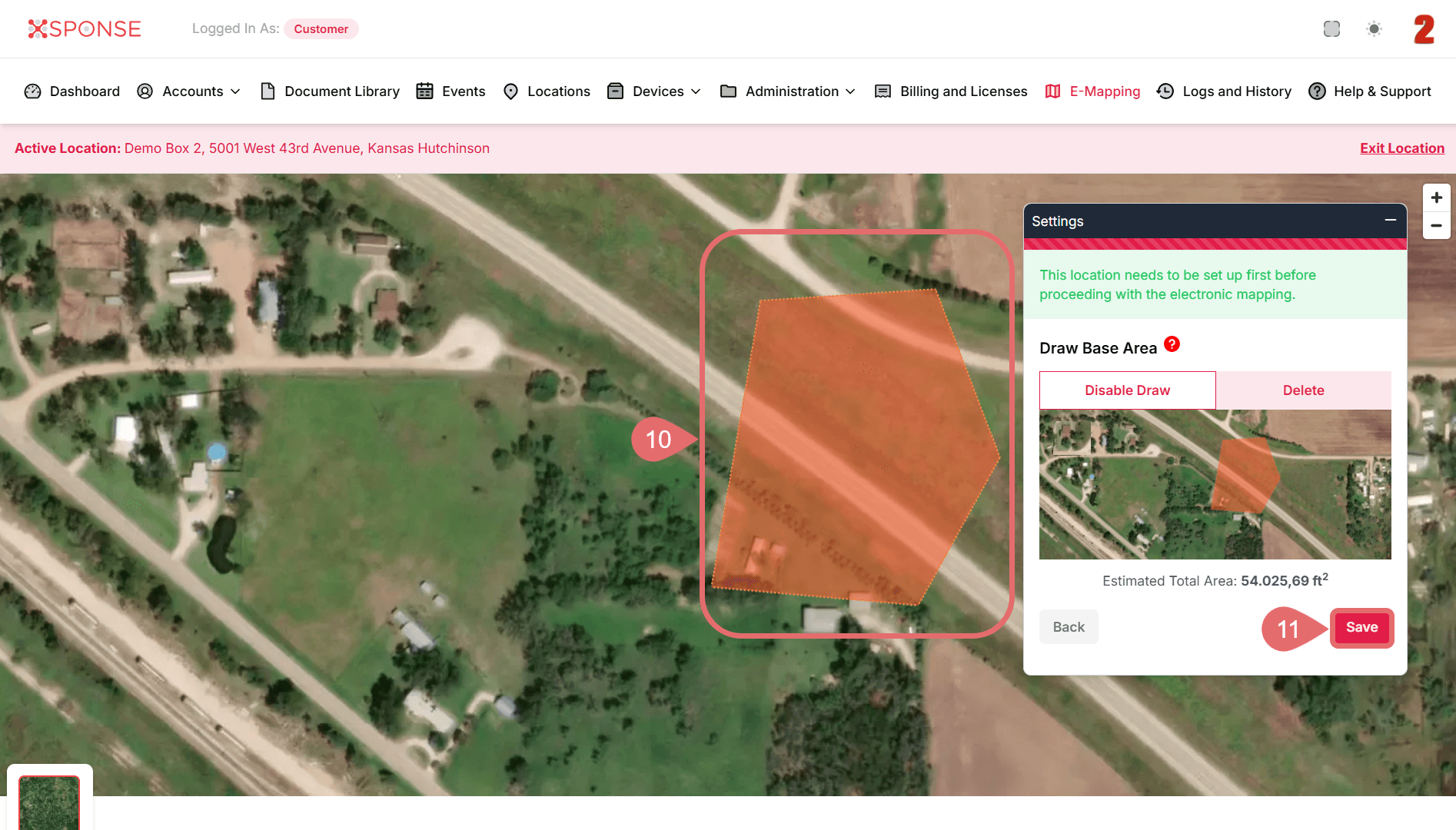
The selected location will now be configured to trigger events based on entry or exit from the defined zone.
See Also
To complement your knowledge of this process, check the following pages: