Add an Advance Event
You can create advanced events for more flexible and customizable automation in Xsponse. These events are ideal for complex setups that involve external systems, detailed logic, or multiple actions.
To Add an Advanced Event
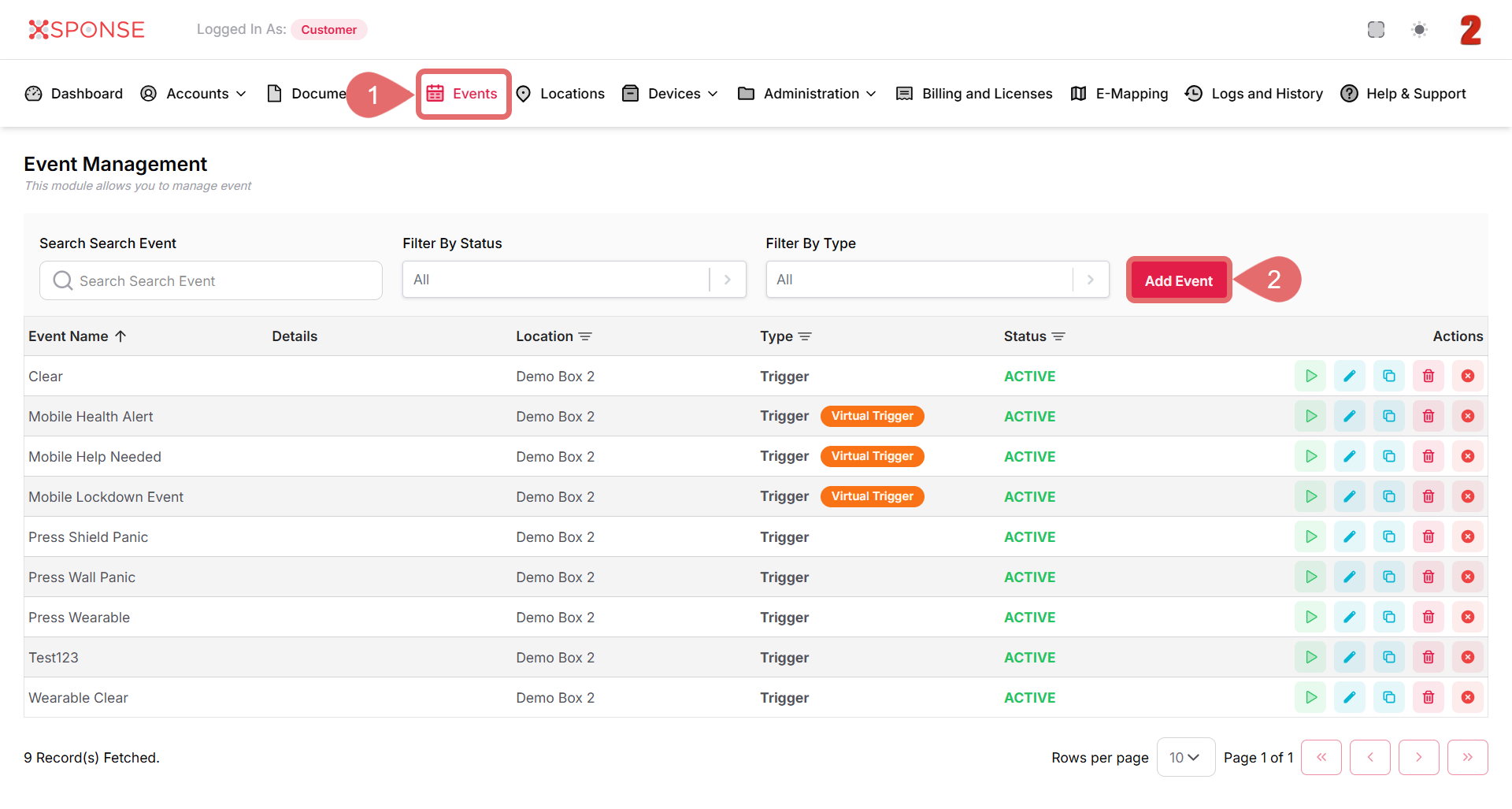
- Go to Events in the main menu.
- Select the Add Event button.
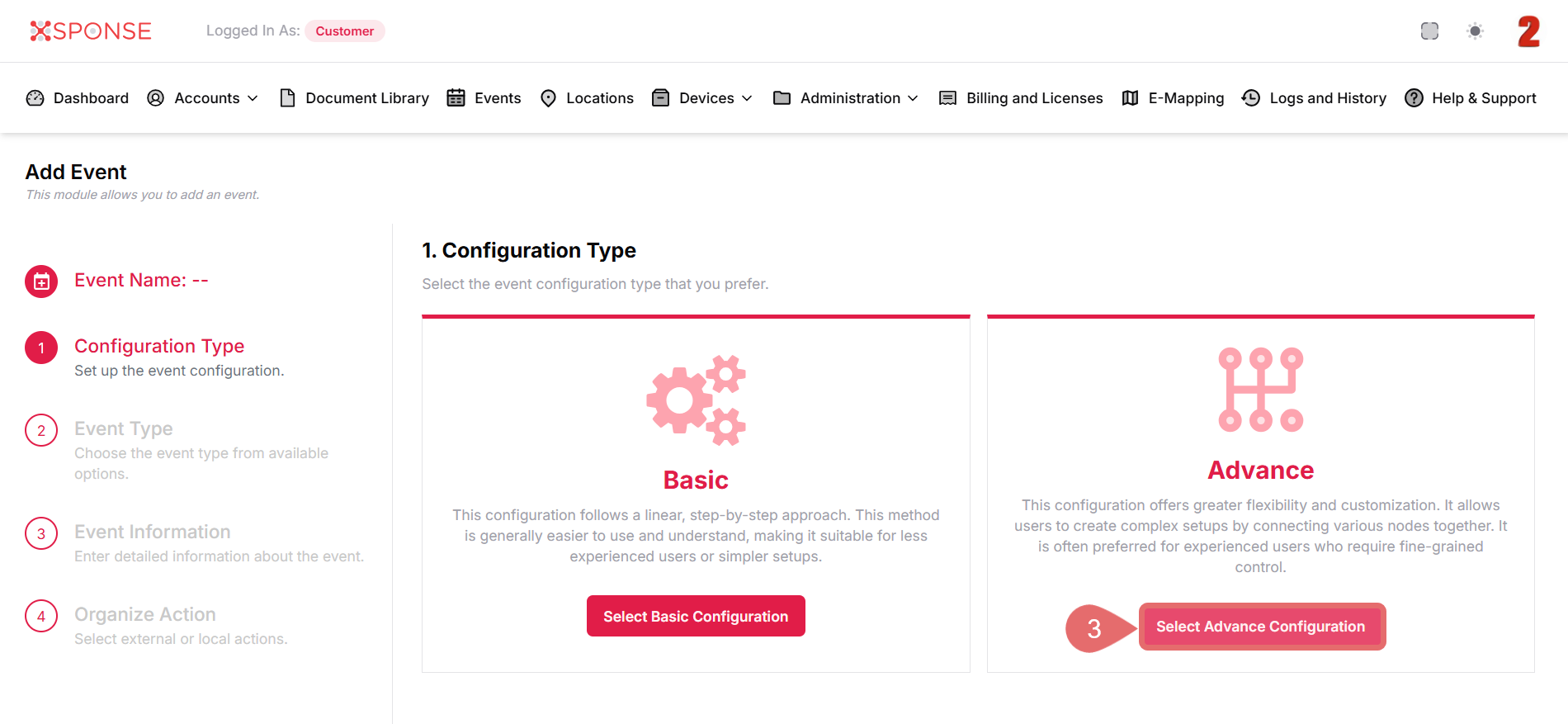
- Select Configuration Type as Advance.
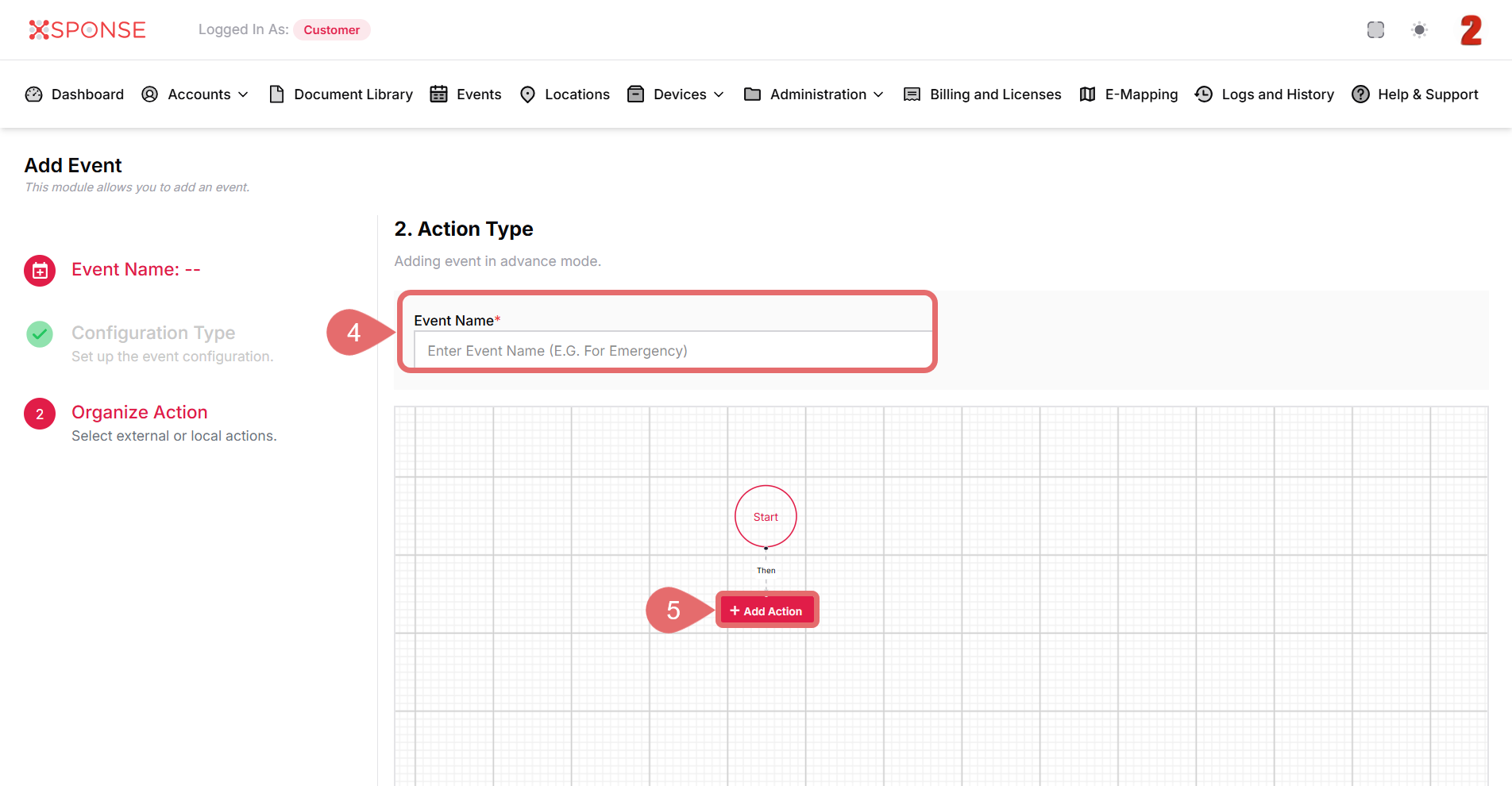
- Enter the Event Name.
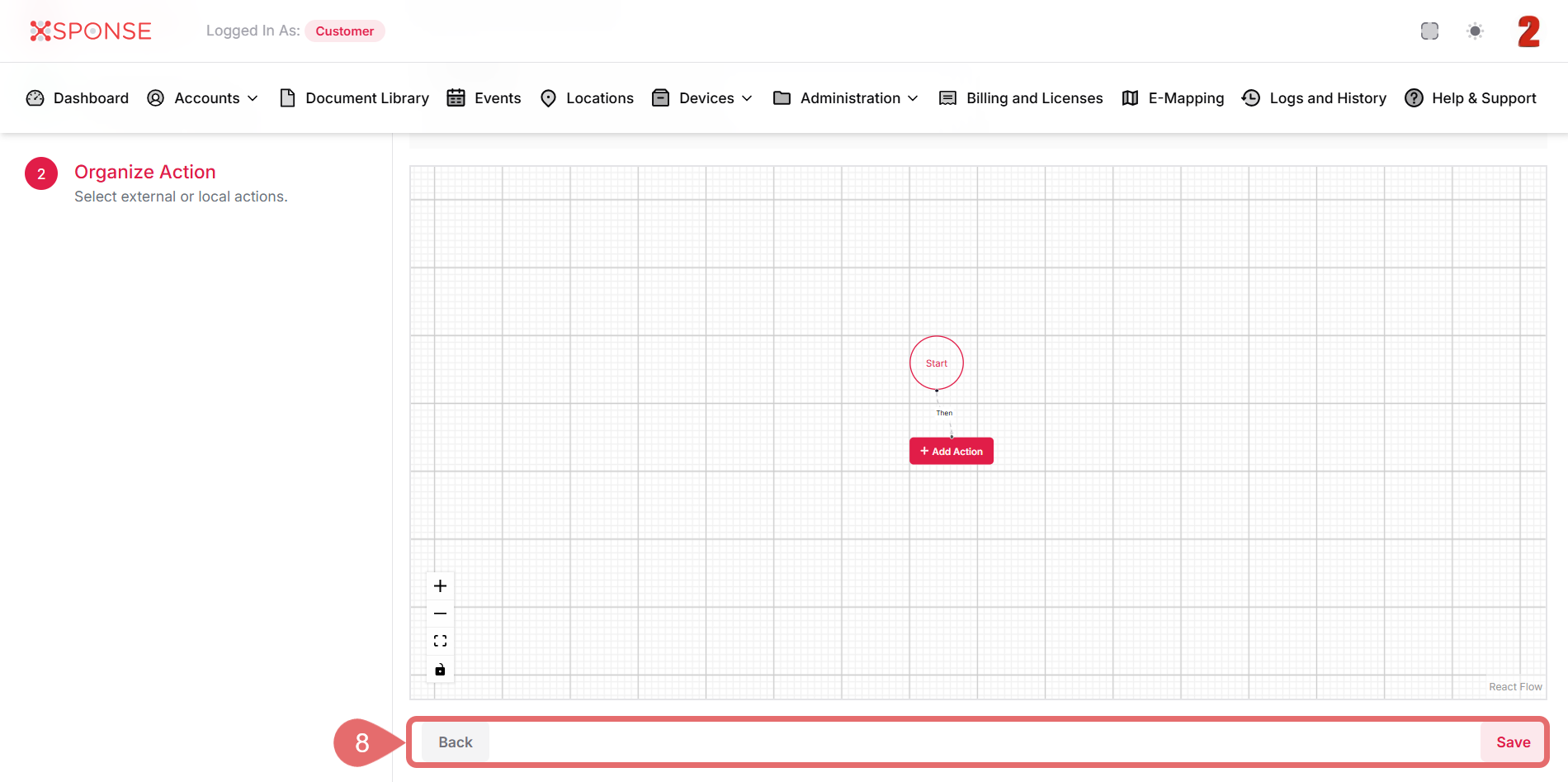
- Click + Add Action.
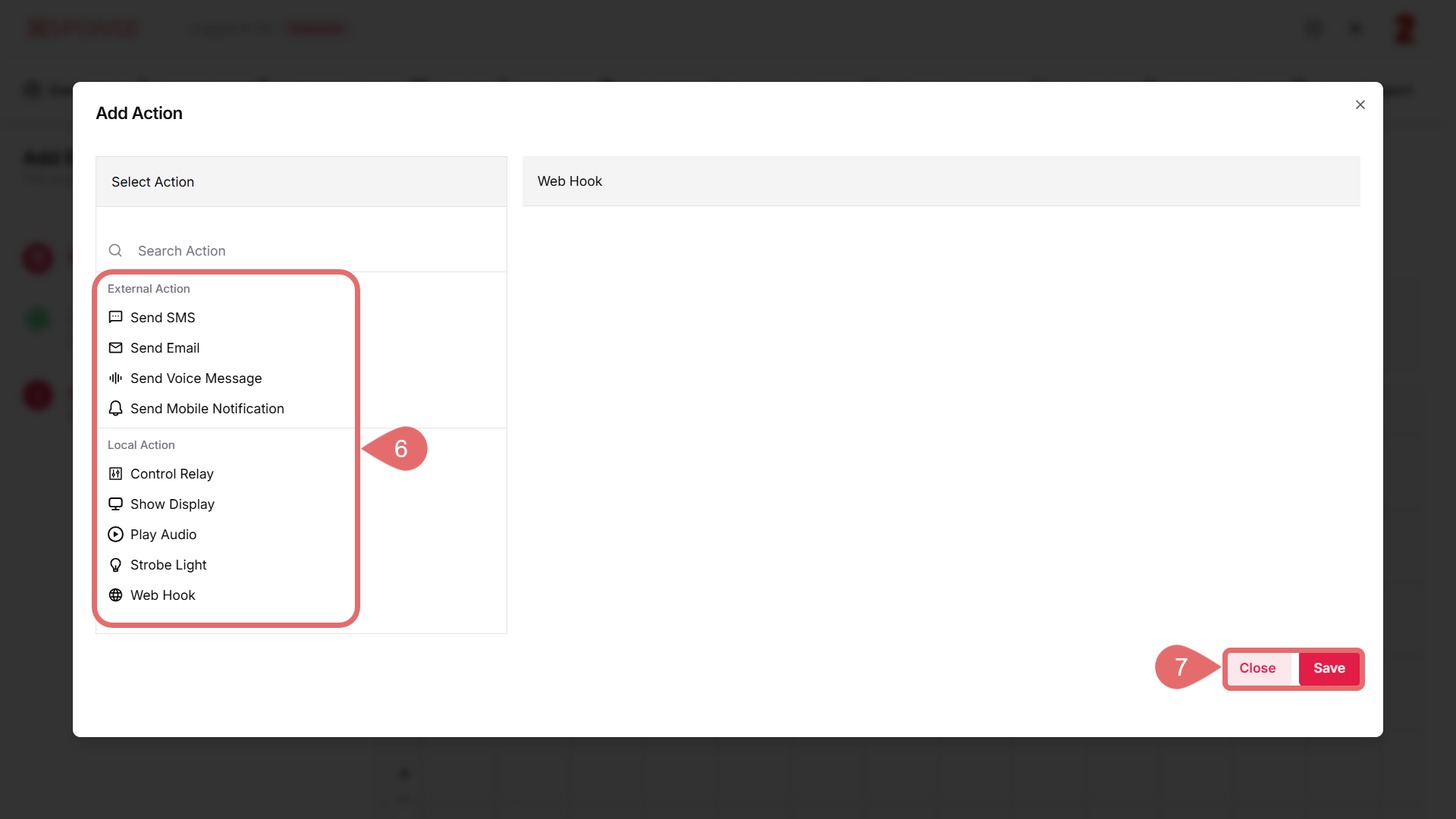
- Select the action type that you prefer.
- External Action: Configure actions that interact with external services or systems.
- Send SMS: Automatically send text messages to your contacts.
- Send Email: Compose and send an email message to the specified recipient(s) with the given subject and body.
- Send Voice Message: Send a voice message, typically to another user or a designated recipient.
- Send Mobile Notification: Define parameters and logic for delivering push notifications to mobile devices.
- Local Action: Select the action to be performed directly on the device or system.
- Control Relay: This action allows you to remotely control the on/off state of a connected relay device.
- Show Display: This action enables the device to present data, messages, or visual content on its built-in display.
- Play Audio: Initiates the playback of the selected audio file.
- Activate Strobe / Light: Enable the strobe or light function for the specified device.
- Webhook: Trigger an HTTP request to an external URL, for integration with other systems or services.
- External Action: Configure actions that interact with external services or systems.
- Click Save to apply changes or Close to return to the event editor where you can continue configuring other actions.
- Click Save again to create the event, or click Back to return to the Configuration Type step.
Need Multiple Actions?
You can chain multiple actions together in the visual editor. Just click + Add Action again to expand your event flow.
See Also
To complement your knowledge of this process, check the following pages: